
Built for the jobs that eat your week.
Everything a school IT team does in Microsoft 365, Intune and Active Directory, in one calm Windows app. Here's where the hours come back.
Dashboard
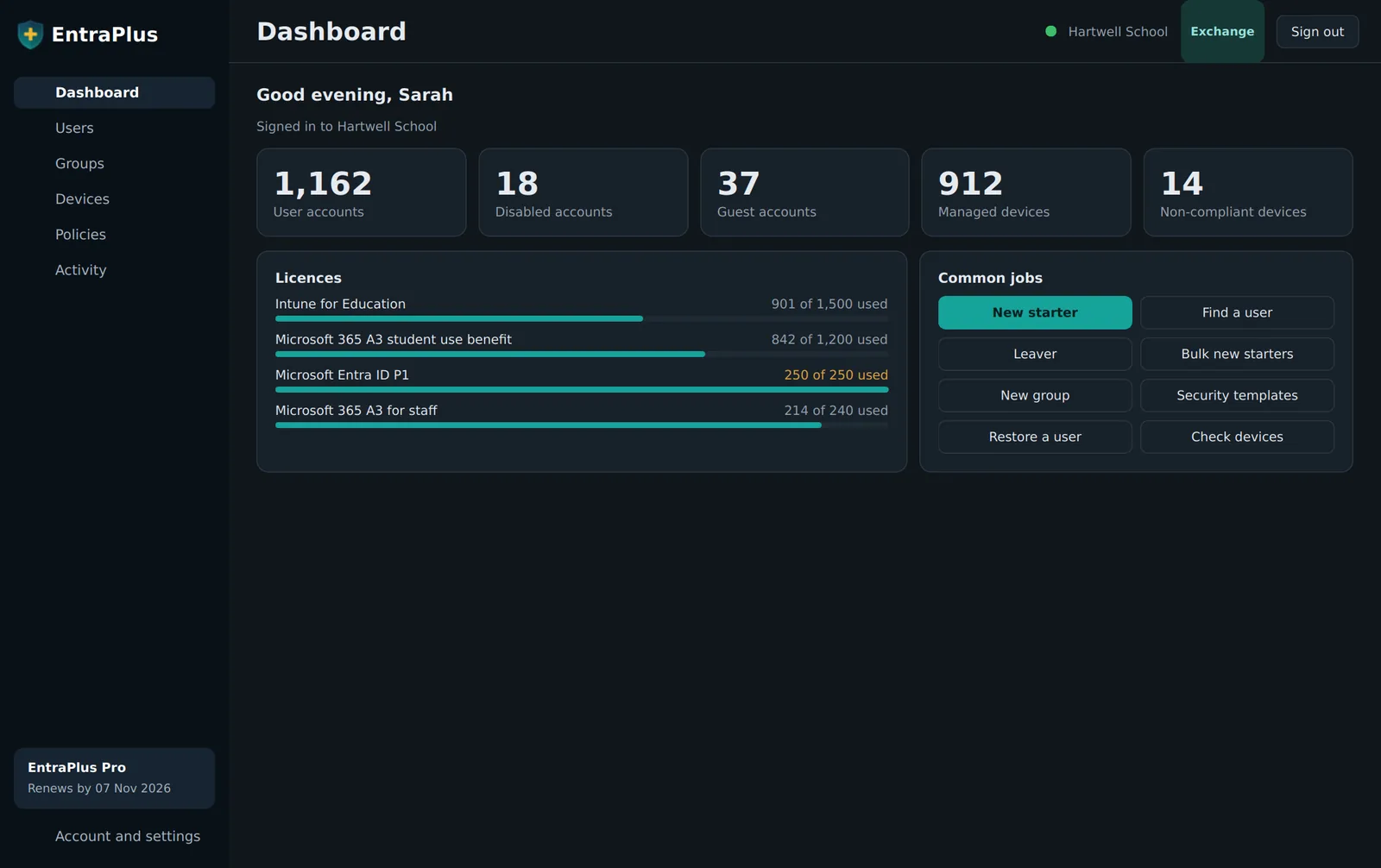
Know what needs you before anyone asks
Open EntraPlus in the morning and the problems are already waiting for you, each one a click away from being fixed.
- Licences running low turn amber while there's still time to order, with staff A1, A3 and A5 first
- Accounts locked out in Active Directory, before the phone rings
- Devices failing compliance, and computers not seen on the network for 90 days
- Quick jobs you choose yourself: move a PC, unlock someone, find a BitLocker key
Saves: the morning tour of four admin centres, every day.
Filters
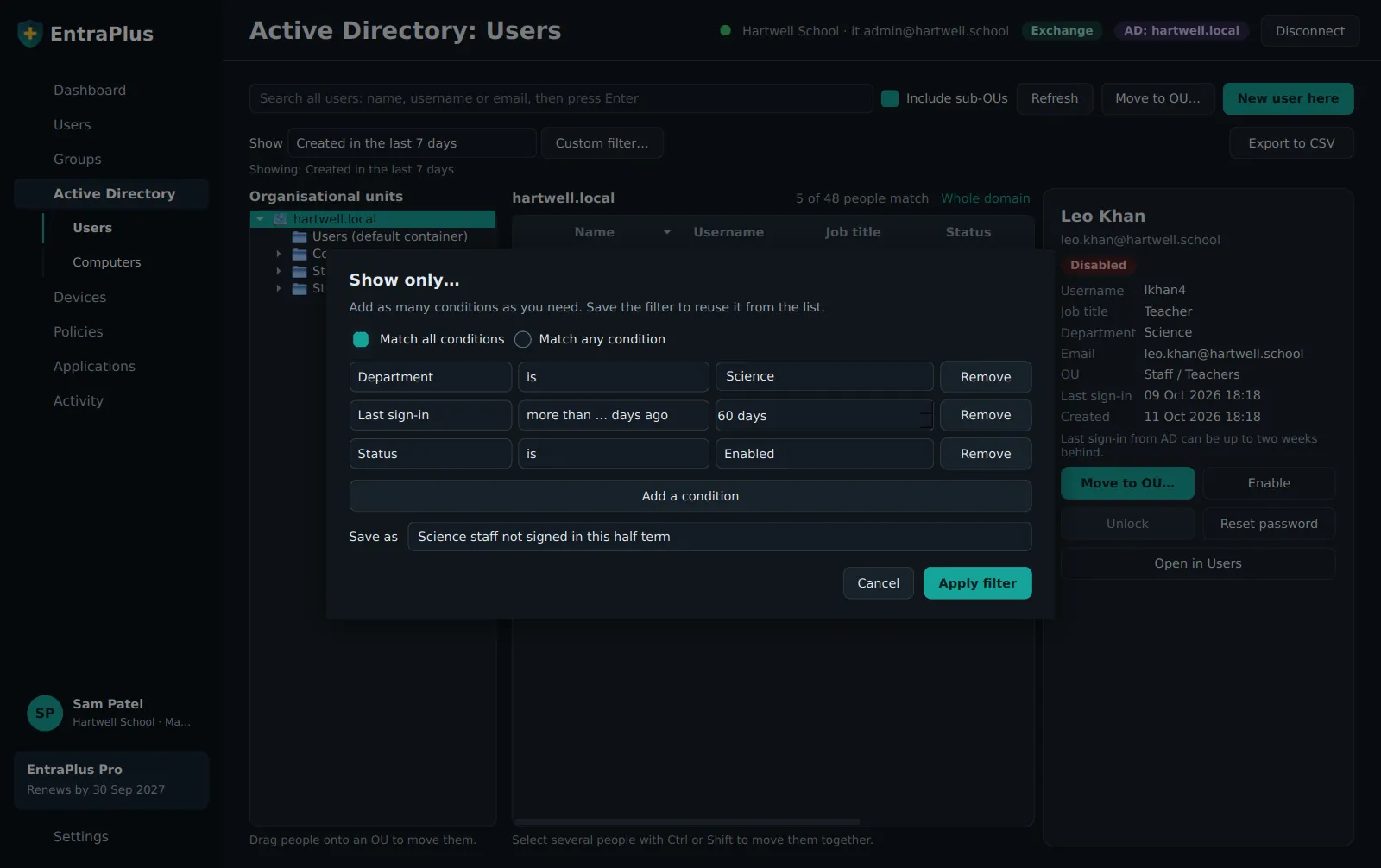
Find exactly who or what you need, in seconds
Ready-made filters for the questions you ask every week, and your own for the ones only your school asks. Save them, use them again tomorrow.
- Disabled accounts, locked out, created this week, not signed in for 90 days
- Computers not seen for 90 days, still on Windows 10, or missing a description
- Build your own from any combination, like Science staff who haven't signed in this half term
- Export exactly what's on screen to CSV for governors, auditors or a spreadsheet
Saves: the exports, spreadsheet filters and copy-and-paste behind every report.
Active Directory
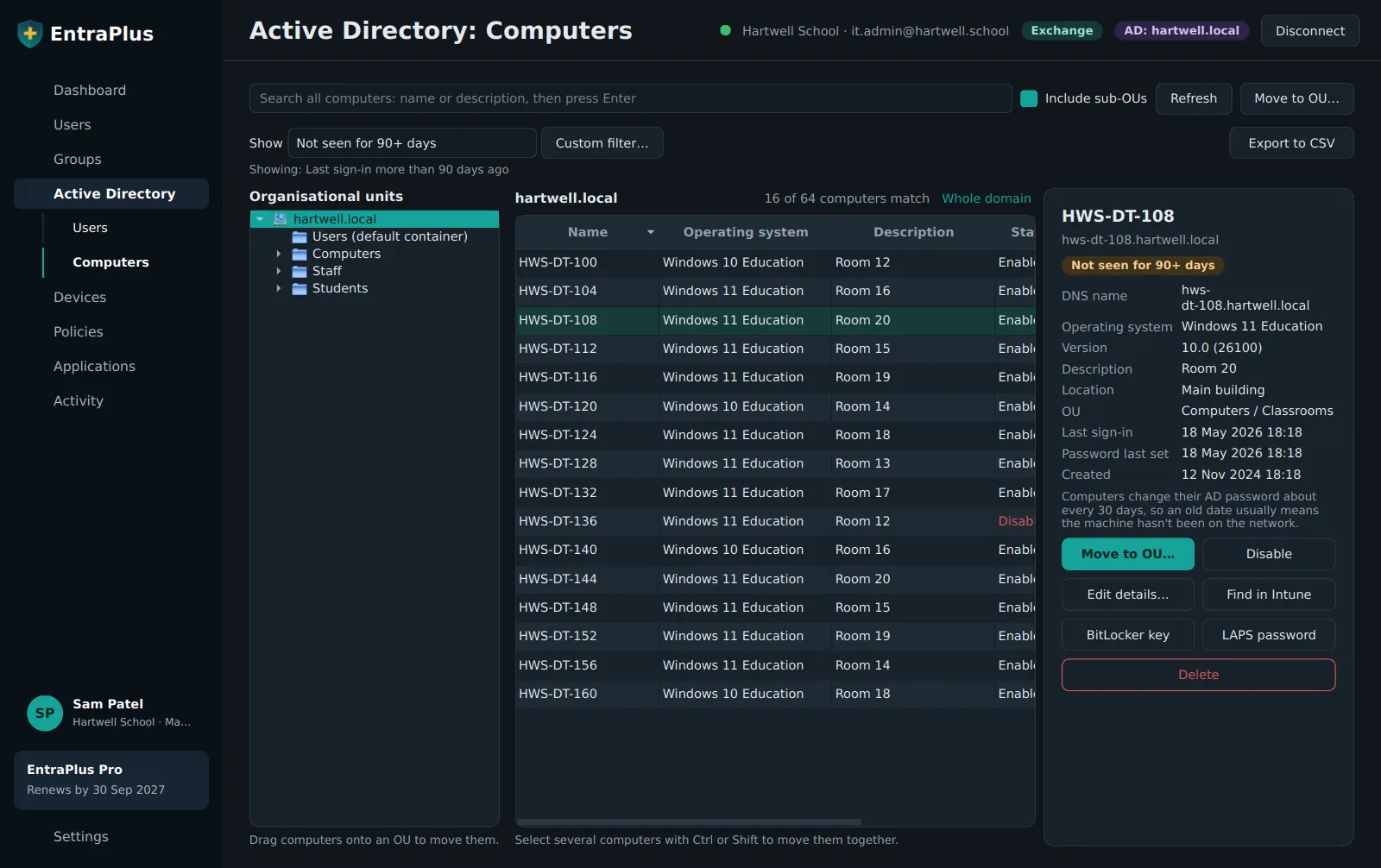
Your whole domain, without the server console
Browse your OU tree, see who and what is in each OU, and move them with a drag. No remote desktop to a domain controller.
- Drag a whole classroom of computers onto a new OU in one go
- Find stale computers and switch them off or delete them, with a confirmation each time
- Unlock accounts, reset passwords and enable or disable from the same screen
- BitLocker keys and LAPS passwords stored in AD, as well as in Entra
Saves: remoting into a server for every AD job.
Devices
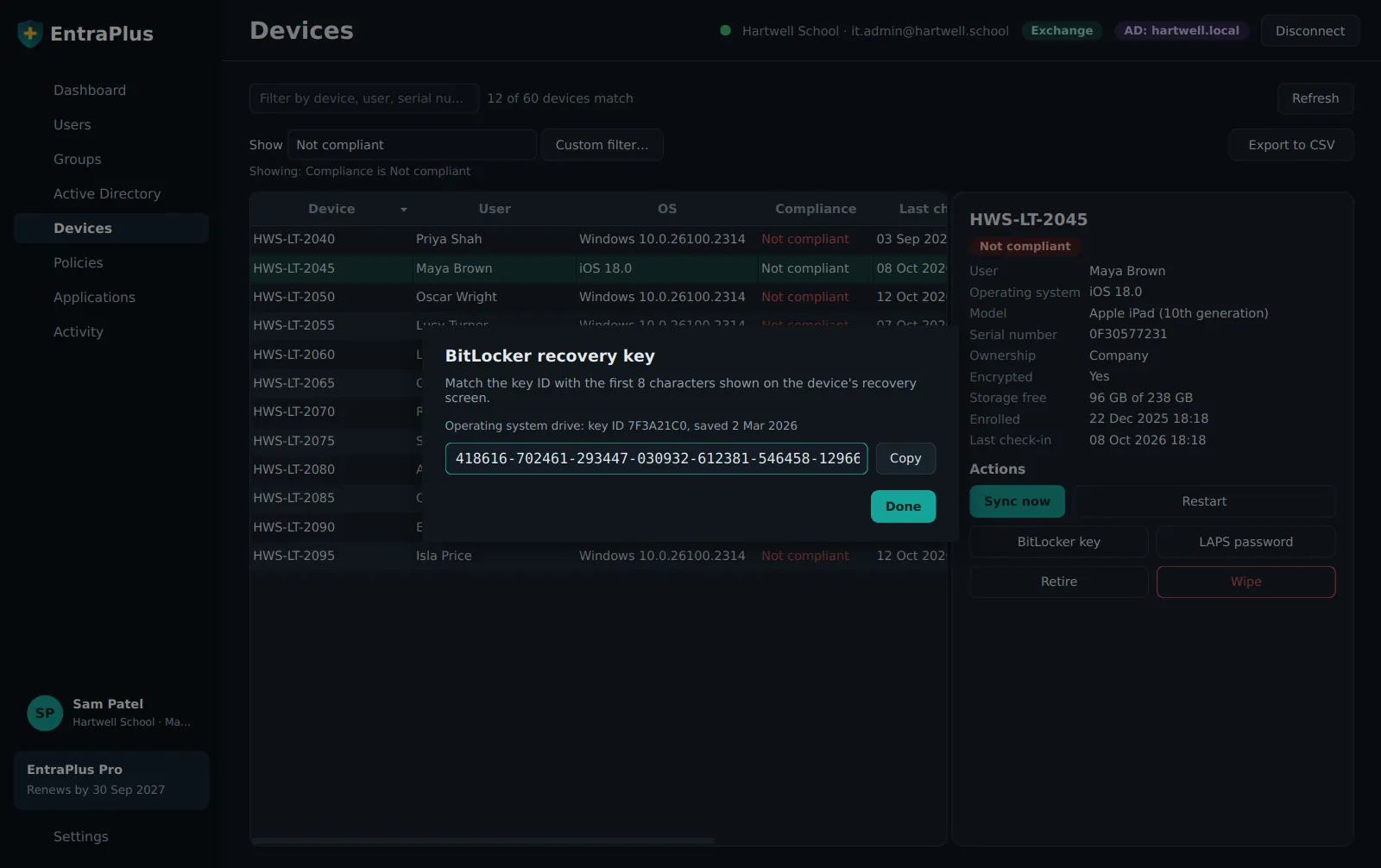
BitLocker keys and admin passwords in ten seconds
When someone's staring at the BitLocker recovery screen, you don't want four clicks through Intune. Type the device, read out the key.
- Every Intune device with compliance, last check-in, encryption and storage
- Filters for not compliant, not checked in for 30 days, unencrypted or personal devices
- Sync, restart, retire or wipe, with the dangerous ones behind a typed confirmation
- Each time a key or password is viewed, it's written to the activity log
Saves: about five minutes per recovery key, and a long silence on the phone.
People
One screen for every account
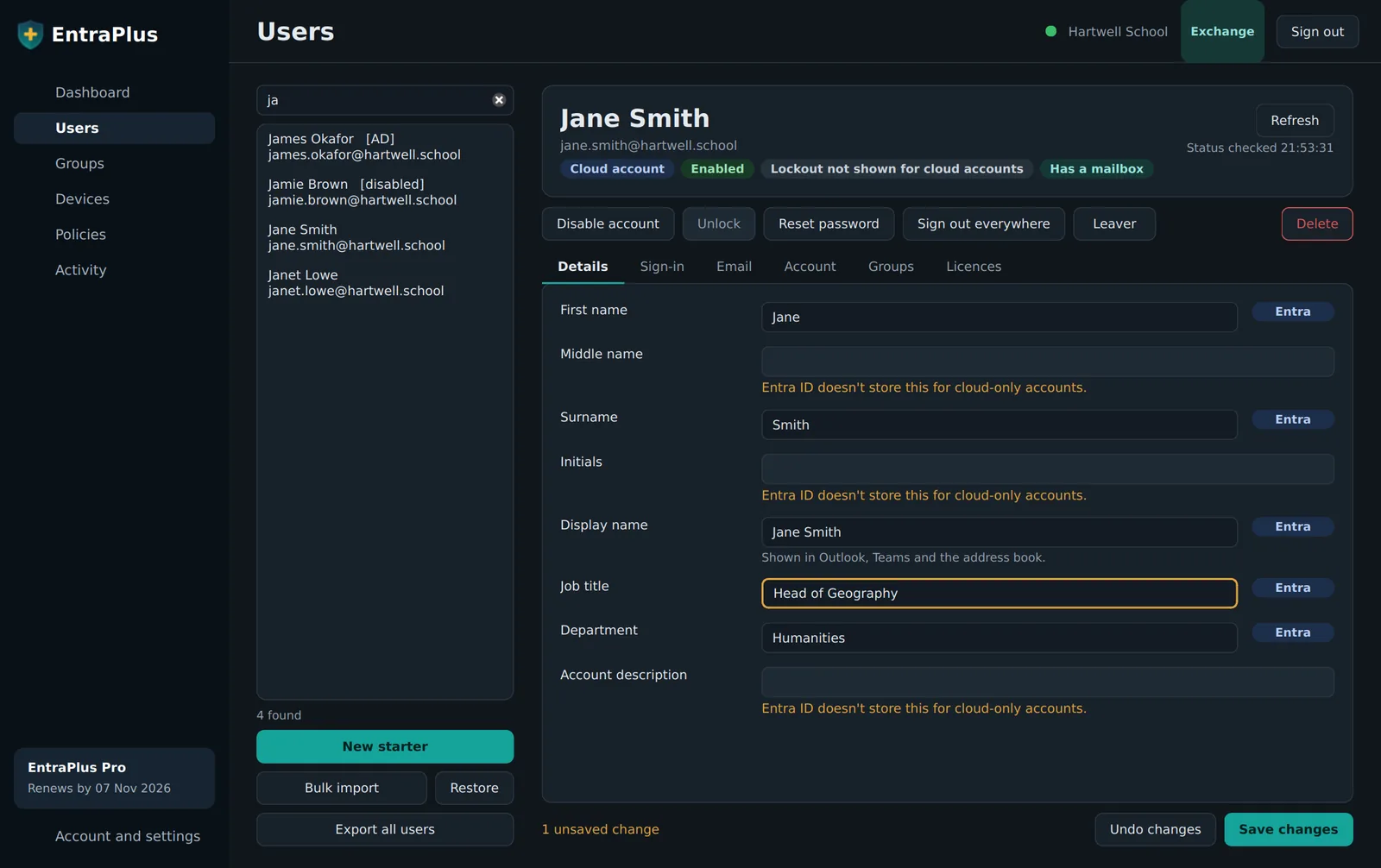
Whether an account lives in Microsoft 365, Exchange or on-premises Active Directory, it's the same screen, and every field shows where it's saved.
- Hybrid accounts edited in AD, cloud accounts in Entra, mailboxes in Exchange, all from one form
- Changes stay highlighted until you save, and can be undone
- Reset passwords, unlock, sign out everywhere, and manage groups and licences
- Sign-in names build themselves for new starters, so typos can't happen
Saves: switching between three admin consoles to change one person.
Starters and leavers
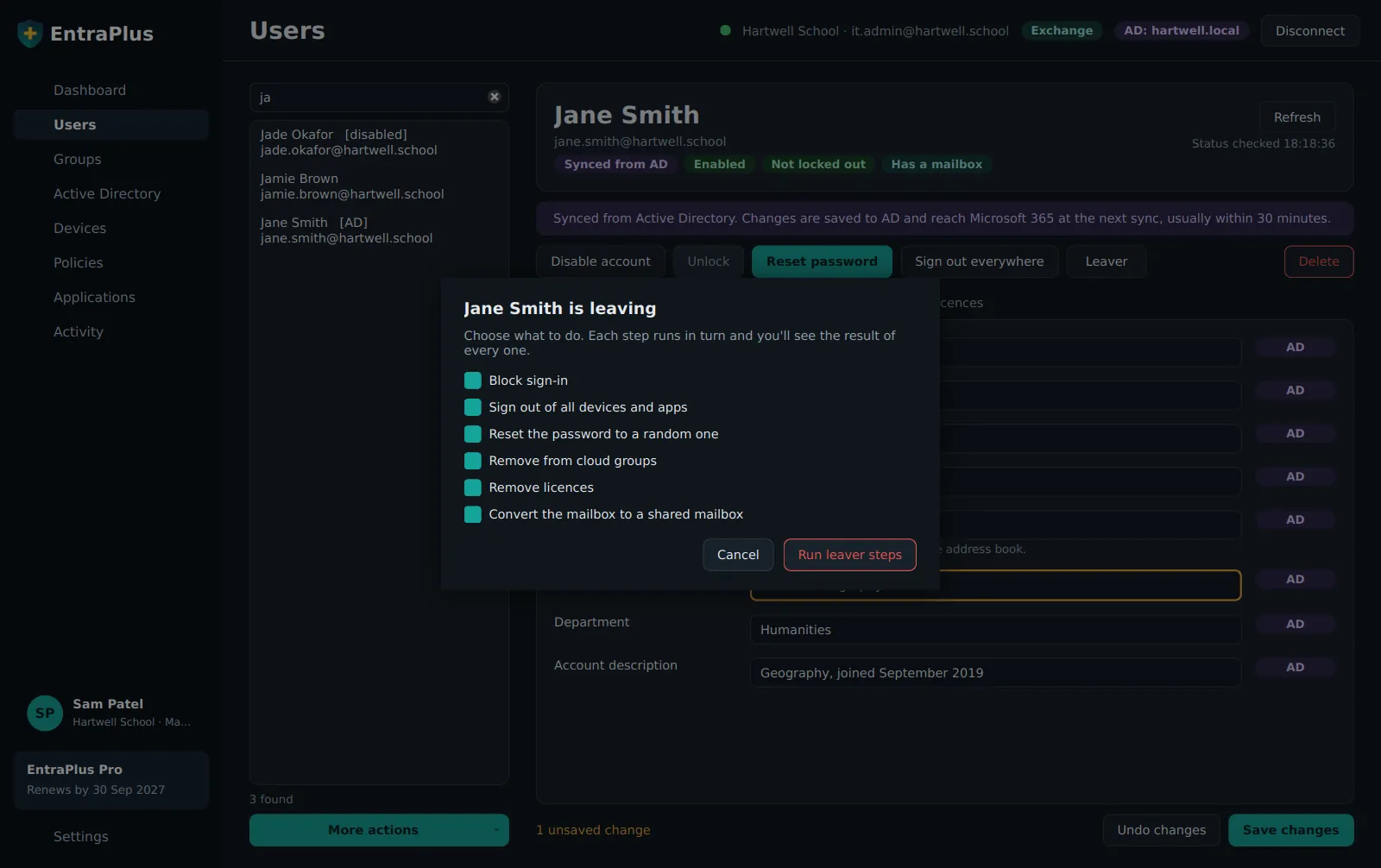
A leaver in under a minute, without missing a step
The jobs nobody enjoys and everybody gets wrong at the end of term, done the same way every time.
- Block sign-in, sign out of every device, reset the password and remove from groups
- Remove licences so they're free for the next starter
- Convert the mailbox to a shared mailbox so nothing is lost
- New starters from one form, or a whole September intake from a spreadsheet
Saves: about 25 minutes per leaver, and the step you'd have forgotten.
Groups
Every kind of group, made properly
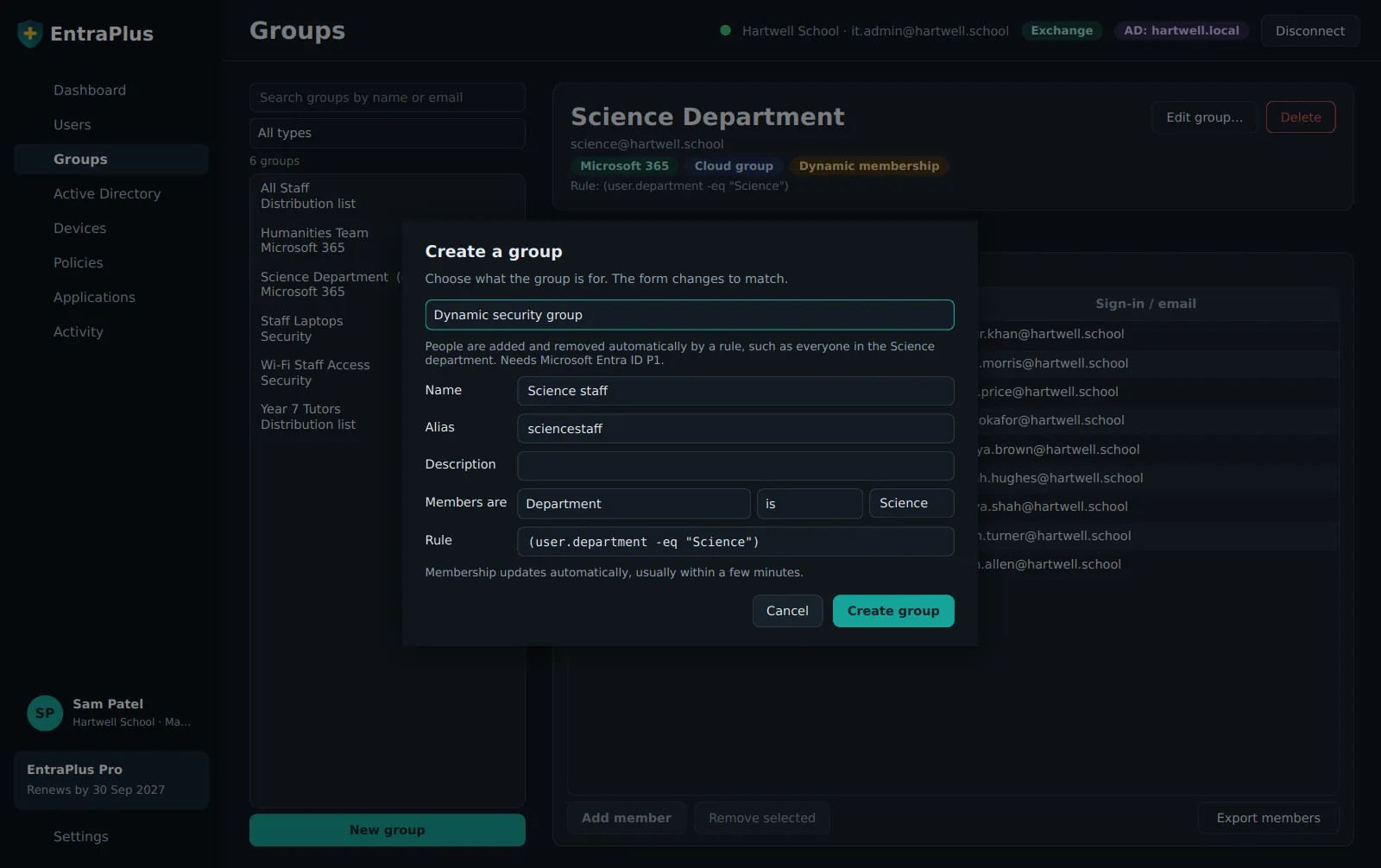
Security groups, Microsoft 365 groups, distribution lists and dynamic groups, from one window that changes to match.
- Dynamic groups with a simple rule builder: everyone in the Science department, kept up to date automatically
- Distribution lists with the right domain and external sender settings
- Owners, members and settings in one place, whether the group lives in Entra, Exchange or AD
- Only addresses that can actually be used are offered, so nothing fails halfway
Saves: the hunt for which admin centre makes which kind of group.
Applications and policies
Spot the problem before the integration stops working
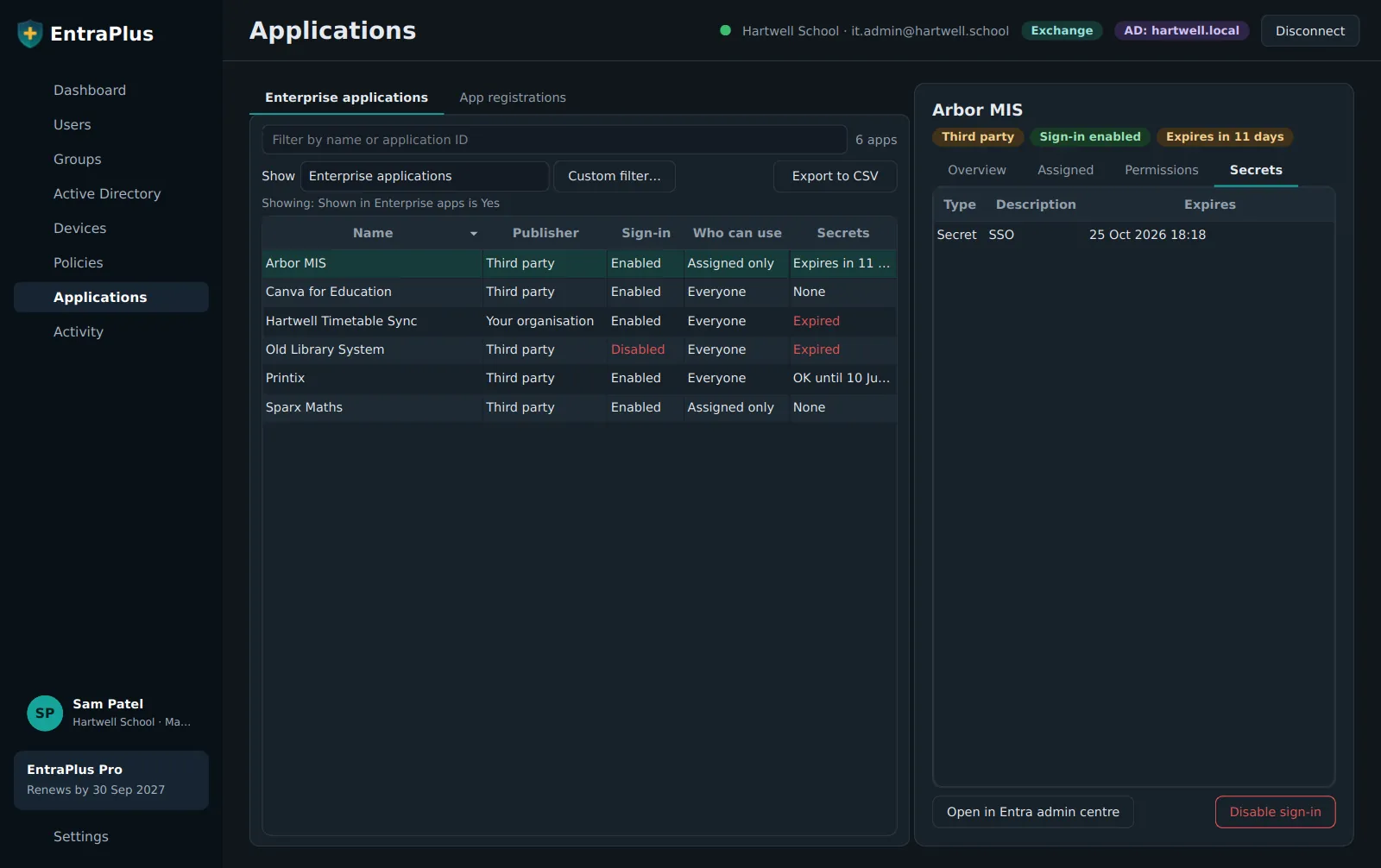
Every app connected to your tenant, who publishes it, who can use it, and when its secrets expire. The most common reason a sync suddenly breaks.
- Secrets and certificates expiring in the next 30 days, in amber
- Third-party apps, unverified publishers and what each app is allowed to do
- Conditional Access policies explained in plain English, with safe templates
- Switch sign-in off for an app in one click, with a confirmation
Saves: the Monday morning when the MIS sync stopped and nobody knew why.
For the whole team
Safe for your newest technician
Give everyone the tools they need and nothing that could hurt on a bad day. You decide who gets what.
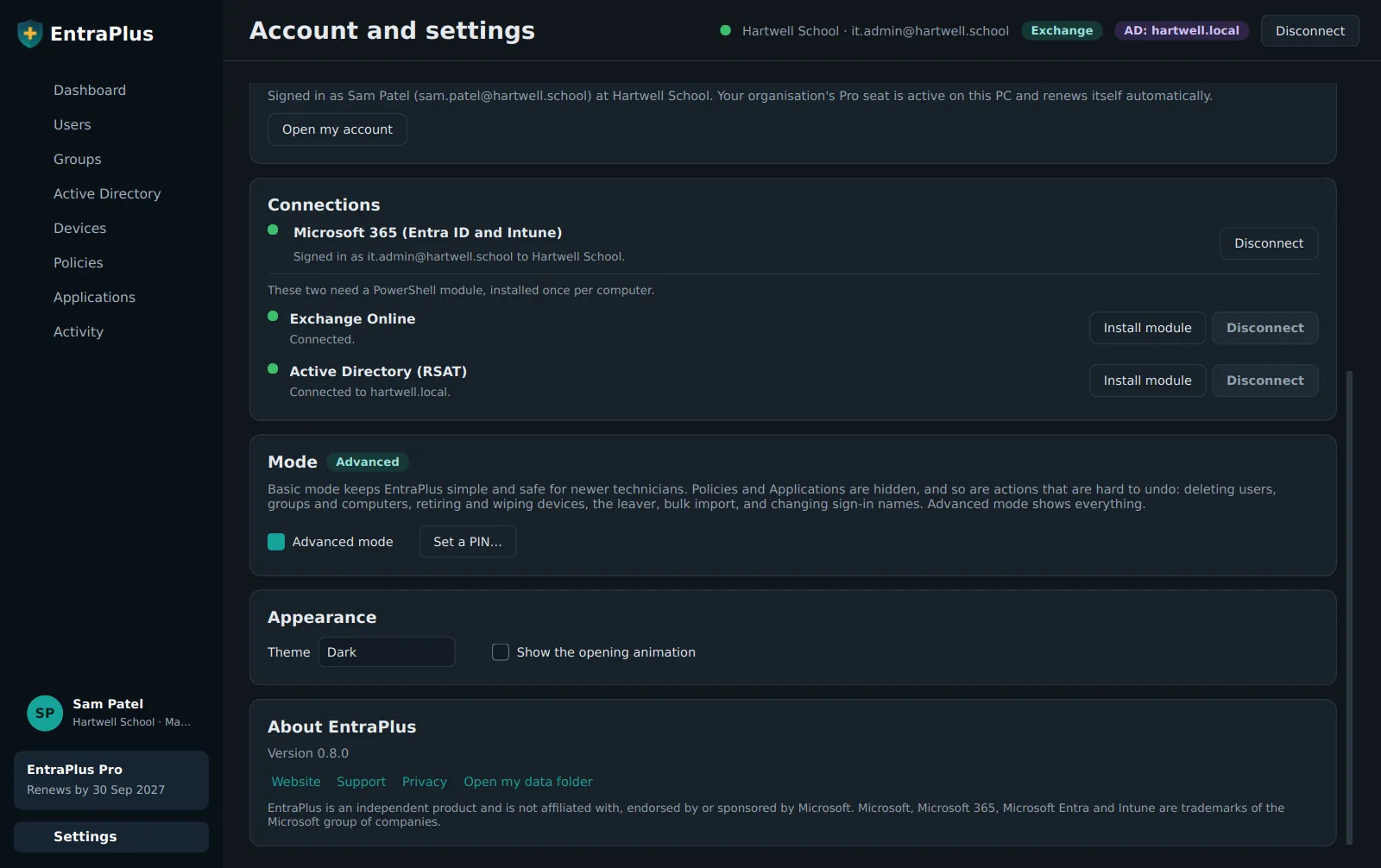
- Basic mode hides deleting, wiping and the leaver; advanced mode shows everything
- Managers decide who's a senior technician from the EntraPlus website, so nobody can switch themselves up
- Dangerous actions need the name typed to confirm
- Every change goes in the activity log, with who did it and when
Saves: the worry about what a new starter might delete.
And the little things that add up
Quick jobs
Choose the jobs you do most and put them on your dashboard, in your order.
Works with your sign-in
Microsoft's own sign-in, with your MFA and Conditional Access. Nothing to store or manage.
Your manager buys, you work
Seats for the team are bought once on the website. Pro switches on when you sign in.
Light, dark and more
Follows Windows, or choose Retro or Claret if you're at the screen all day.
No scroll-wheel accidents
Drop-downs never change as you scroll past them, so a setting can't flip by mistake.
Hybrid by design
Every field knows whether it belongs to Entra, Exchange or AD, and saves it there.
Get your hours back
EntraPlus is free to download and free to use for everyday jobs. Pro adds everything on this page from £10 per technician a month, billed yearly.